
Vision Parameter Manual,Ttetrahedral calibration method and Training form

Vision Parameter Manual

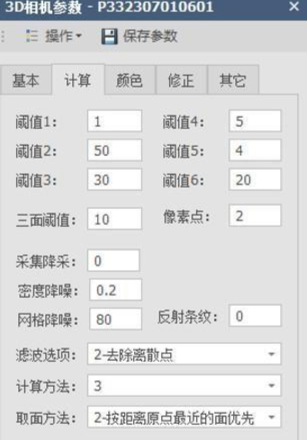
Threshold 1: Distance Sampling (1~3 recommended) 

The collected point cloud is retained with a value range of Threshold 1 (unit: millimeters). The higher the value, the more dispersed the point cloud will be, with fewer points and lower storage usage. Example: With a value of 2, one point is retained every 2 mm in the entire point cloud. 

Subsampling in collection: Enable subsampling at the end of the sensor; 0.2 is recommended, and may be increased or decreased.

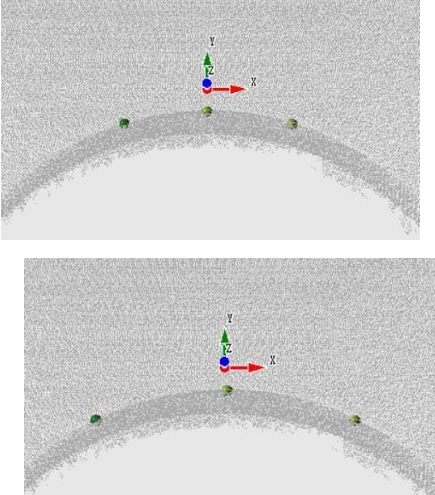
Threshold 5: Exclusive for the selection of points in FNPN arcs 

The higher the value, the greater the horizontal range for the selection of points in the arc. As shown in the image: with Threshold 5 = 4, the separation between points is small; with Threshold 5 = 6, the separation between points is greater. It is recommended that the height of the arch be greater than 5 cm.

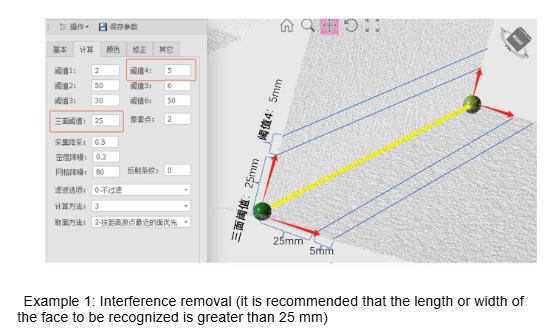
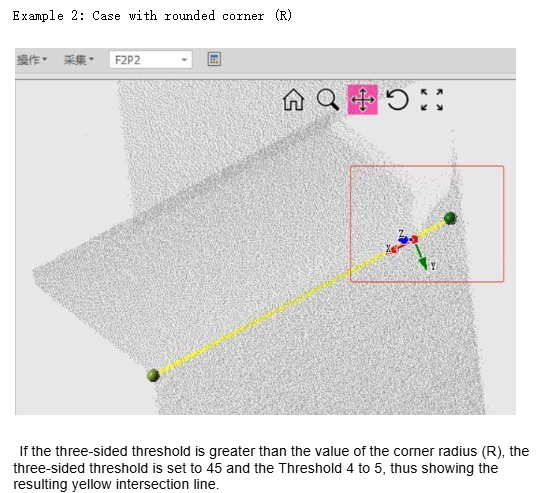
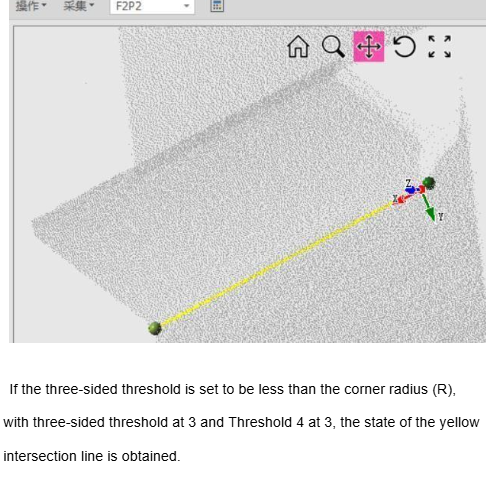
Three-sided threshold: At the intersection of the three faces, the 

high-quality point clouds that are outside the threshold of 

distance to the intersection line in the plane (unit: millimeters) for 

Participate in the intersection. This prevents point clouds from falling low 

quality within the threshold participate in the intersection. 

Threshold 4 is used in conjunction with the three-sided threshold and represents the 

outward limit range for point cloud extraction from the 

three-sided threshold. As shown in the image, the 

cloud points that are 25 mm from the yellow line of 

intersection, within the two blue lines separated by 5 mm, to 

Calculate the yellow intersection line.

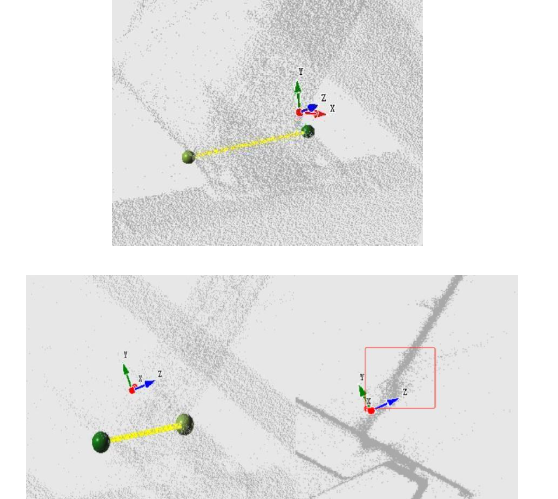
The image above is an example of an intersection; The point cloud within the red box is of low quality. The three-sided threshold and Threshold 4 are used to prevent the low-quality point cloud from participating.

Threshold 6: Continuous length (exclusive for rounded corners, R) 

It is used in the intersection of faces to eliminate points that are far from the ends of the line segment and that are above the intersection line; if they exceed the threshold (unit: millimeters), they are discarded.

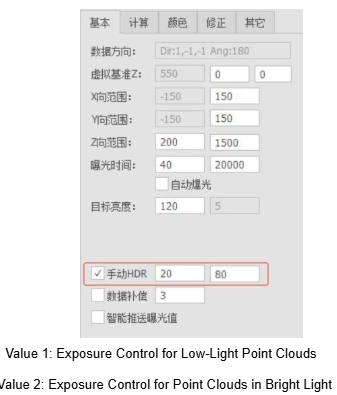
Manual HDR: Used to capture points in high-range environments 

dynamic light.

Tetrahedral calibration method

Step 1

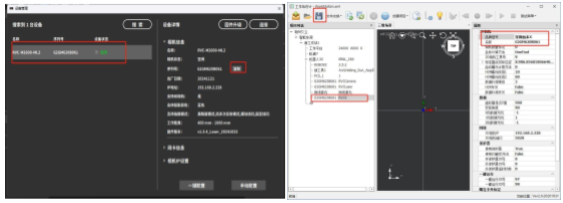
Open the main software, search for the **RuBen 3-in-1 camera**, and click to copy the camera’s serial number.

Open the software of the dedicated machine in the station design, select the **3D camera brand** as **Shenzhen RuBen X** and paste the copied serial number into the **name field**.
Step 2

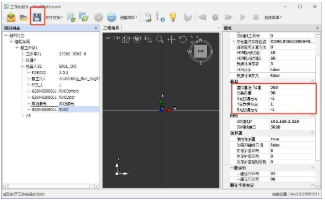
  1. Make sure to adjust the virtual reference value Z according to the site conditions and the length of the gun, entering an appropriate data. Generally, it is recommended to use **550 or 600** (for a length of normal gun neck). The order of the addresses of the XYZ data is **-1, 1, -1**.

    (Other camera brands should also adjust the direction order of the data according to the actual situation.)

    The **installation angle** should be checked and recorded according to the actual installation on site.

    Note: To check the direction of the data and the installation angle, place a real reference object and compare whether the captured point cloud is in the same direction (as per the robot’s vision, as shown in the image below: if the object is placed in the upper right, the point cloud should also appear in the upper right).
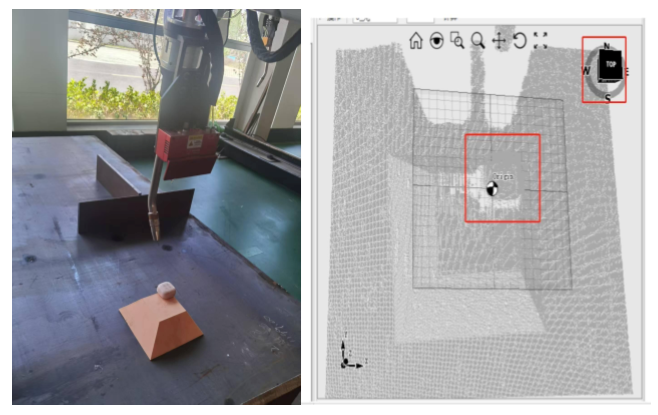
  1. After completing the filling, click the **Save** button to save the configuration changes, and then exit the workstation design page.
Step 3

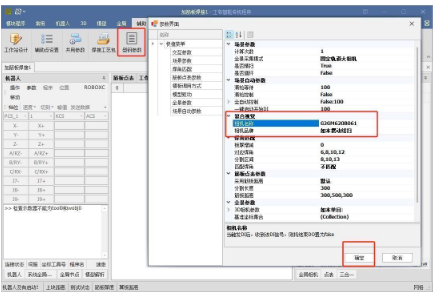
  1. Click **Steel Profile Parameters** in the auxiliary list. In the composite view, set the camera brand according to the oscillating line camera model used, enter the camera’s serial number in the **camera name field**, and then click **OK**.
Step 4

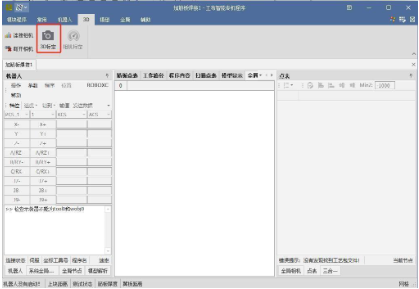
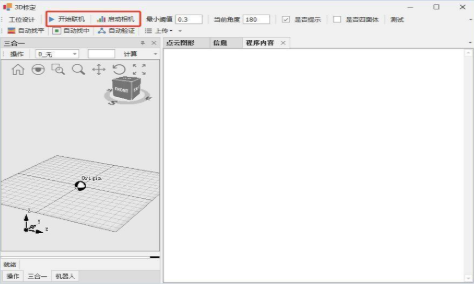
  1. Click the **3D Calibration** button on the 3D page to enter the **3D Auto Calibration** page.
Step 5

  1. Click successively on **Start Connection** and **Activate Camera** at the bottom of the page.
Step 6

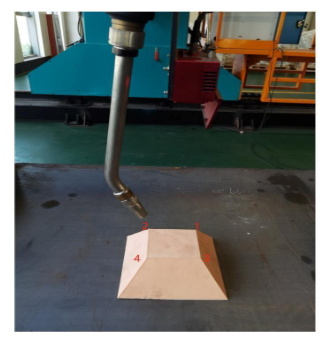
  1. Place the **calibration tetrahedron** directly below the robot camera. Note that the order of recording the points corresponds to the current view of the PCS: the **lower right point** is the **first point**, the **upper right point** is the **second point**, the **lower left** is the **third point**, and the **upper left** is the **fourth point**.
Step 7

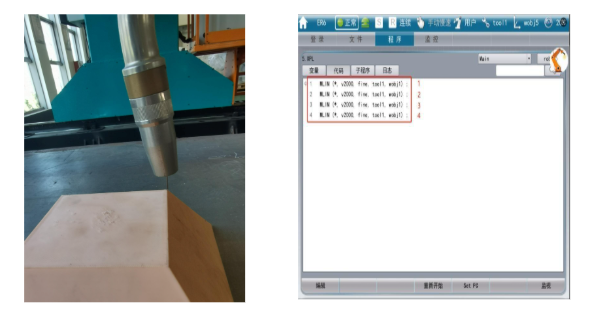
Use the teaching control to move the **TCP end** of the robot’s welding torch and perform the teaching point by point following the order of the points in the previous step. After the teaching is complete, save the data.

Note: Points must be recorded in the **tool1 coordinate system**. The length of the welding wire during registration should be the same as that used during calibration. When registering the four points, be careful not to change the robot’s angles **A, B, and C**.
Step 8

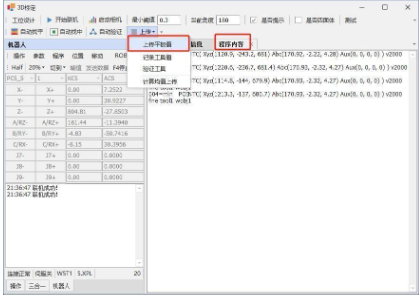
  1. Click the **Upload Drawing Values** button from the drop-down menu. The program content will display the points recorded by the teaching control and will successively replace **Calibration Point 1**, **Calibration Point 2**, **Calibration Point 3** and the **Central Point**.
Step 9

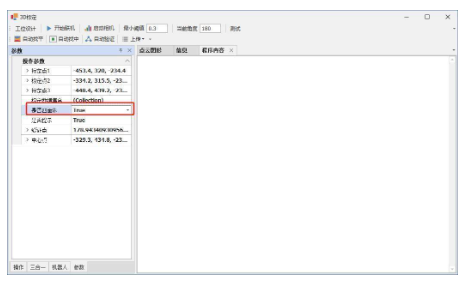
  1. In the list of parameters, configure the option **Is it a tetrahedron?** to **true**.
Step 10

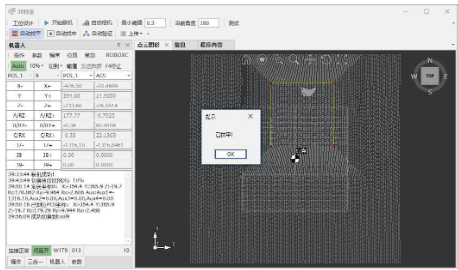
  1. Move the camera up to directly over the calibration tetrahedron and click **Auto Leveling**. The camera will automatically perform the acquisition and calculation. When the calculation message appears, note if the calibration board calculation and the indicated rotation angle are normal; if so, click **Yes** until the **Leveling Completed** message appears.

    Note: If the camera tool (**tool9**) does not contain values of calibration (e.g. on a newly installed robot or after updating the card files), copy the values from the **TCP tool (tool1)** to the corresponding camera tool number.
Step 11

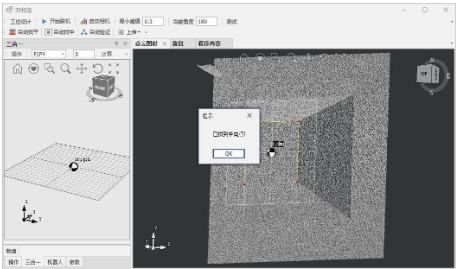
  1. After completing the leveling, click the **Auto Centering** button. Similarly, note if the calculation of the **F1P4 calibration board** and the indicated motion offset are normal; if everything is correct, click **Yes** and repeat this operation until the **Centered Completed** message appears.
Step 12

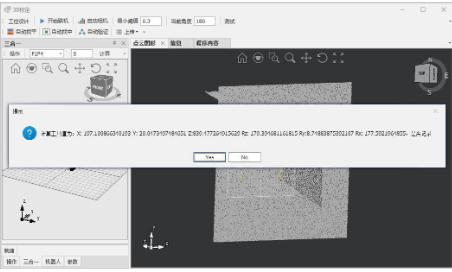
  1. After leveling and centering are complete, change the tool to **tool9**. Click the **Upload Tool Values** button in the upload list to upload the calculated tool values to the controller. With this, the calibration of the 3D camera is complete.
Step 13

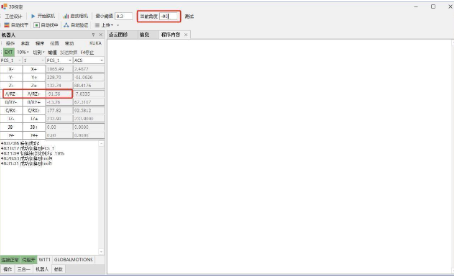
  1. If higher camera accuracy is required, perform a **multi-point tetrahedron calibration**. Based on the robot’s current **RZ angle**, record the corresponding angle (repeat the calibration four times with the values **90, -90, 180 and 0**).
Step 14

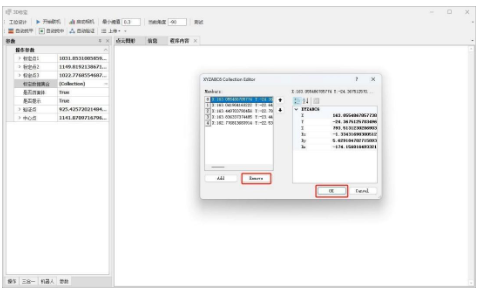
  1. Click **Calibration Dataset** in the parameters section to check for data. If there are, click the **Remove** to delete all data and then click **OK**.
Step 15

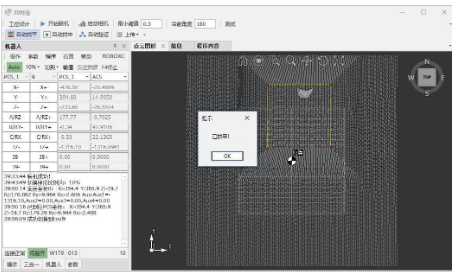
After completing the fill, click **Auto Leveling**. The camera will automatically perform the acquisition and calculation. When the calculation message appears, note if the calibration board calculation and the indicated rotation angle are normal; if so, click **Yes** until the **Leveling Completed** message appears.
Step 16

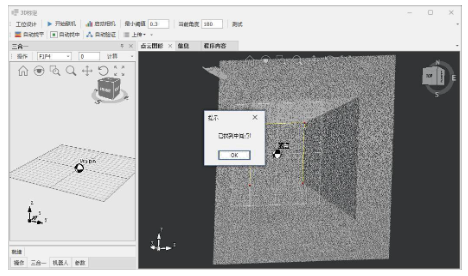
  1. After completing the leveling, click the **Auto Centering** button. Similarly, note if the **F1P4 calibration board** calculation and motion offset indicated are normal. If everything is correct, click **Yes** and repeat until the **Centered Completed** message appears.
Step 17

  1. After leveling and centering are complete, verify that the tool number is **tool9**. Then, click **Record Calibration Data** in the Operations section to save the calibration data for this angle to the calibration dataset.
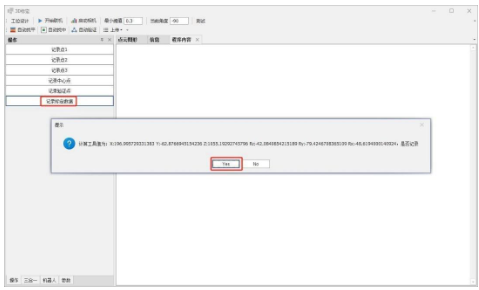
Step 18

  1. Once all calibration data for all four angles is recorded, click **Calculate Average and Move Up** to load the data from Controller calibration. With this, the 3D calibration is complete.
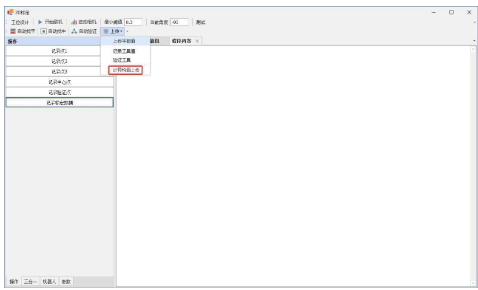
Training Form

Serial Number Training element Detailed content to learn and master Actual start and end date and time Participant’s signature
1 Team composition and security maintenance Knowledge of workstation parts/equipment maintenance and safe operation
2 Teaching Visual Interaction Master basic image capture/scanning/welding methods
3 Visual Interaction Practice 1 Improve skill in using the capture system through real practice
4 Process-Related Teaching Master the welding process parameters in the welder panel controller/configuration and process packages
5 Visual Interaction Practice 2 Improve skill in using the process capture and adjustment system through real practice
6 Teaching shared parameters Master the meaning and use of each parameter within the shared parameters
7 Visual Interaction Practice 3 Improve skills in using the capture system and shared parameters through real practice
8 Motion Control Teaching Master controller motion control and use of robot/user/joint coordinate systems
9 Torch Calibration Teaching Master tool calibration and correction methods, accuracy deviation ≤ 1 mm
10 Visual Calibration Teaching Master calibration, correction and parameter configuration of the linear laser (3D camera)
11 Multi-Node Practice 1 Master the nodes frequently used by the user, correctly understanding each parameter
12 Other Controller Parameters Know additional controller axes, monitoring, zero-point logging, and common commands
13 Multi-Node Practice 2 Master the nodes used by the user and know the parameters of other nodes
14 Complete mastery of visual interaction Fully master the operation of the visual interaction system, parameter adjustment and common settings
15 Advanced Standalone Operation 1 Use the welding system skillfully according to the actual situation of the component
16 2 Advanced Independent Operation Use the welding system skillfully according to the actual situation of the component
17 3 Advanced independent operation Use the welding system skillfully according to the actual situation of the component
18 Handling Frequently Asked Questions (FAQs) Common Diagnostic and Troubleshooting Methods During Use
19 Continuous welding according to standards Independent operation, achieving the continuous welding volume required for the company’s usual component types
*The training confirmation form is the only valid document for on-site training; Update learning time daily and ask participants to sign in to confirm learning outcomes.

Comments Box SVG iconsUsed for the like, share, comment, and reaction icons
Cover for Shaanxi Jingtai Cooperation Laser technology Co.,Ltd
Shaanxi Jingtai Cooperation Laser technology Co.,Ltd

Shaanxi Jingtai Cooperation Laser technology Co.,Ltd

854,340 Likes

Intelligent robot workstations, intelligent work islands, providing the entire process (cutting, assembly, welding, grinding, inspection, etc.) of intelligent applications for the non-standard metal structure manufacturing industry.

The perfect integration of humanoid robots and industrial robots.

Sincerely wishing all our friends at home and abroad great success and a leading start in 2026!
See MoreSee Less

1 day ago

Seamless Welding Simulation with Profile Mapping
#intelligentweldingautomation
See MoreSee Less

3 days ago

We struck an arc and started welding on Day 4! Plant owners ready to see the future of fabrication? Hit me up! #SmartManufacturing #IntelligentWeldingRobot See MoreSee Less

4 days ago

2026 Launch: Introducing Our New Laser Platform Welding Category 🚀 See MoreSee Less

5 days ago

4 CommentsComment on Facebook

I think this is AI. Stainless steel will pull like an SOB There is no fixtuering stabilizing the top.

😮😢I need that machine

How to be u I want to learn

This has been a wonderful addition to my collection! It's functional, attractive, and everything I hoped for. Exceeded expectations!

Load more

Latest News

Contact Details

Subscribe Us

Join our newsletter; you will receive our newest videos/tips of our laser marking, cutting, welding, cleaning and cladding machine’s latest prices and the latest promotional news


You will also get our monthly report of best products, and also coupons.

Inquire Now

Feel free to inquire now. We are always here to help you.

¡Consulta ahora!

Siéntase libre de hacer su consulta ahora. Siempre estamos aquí para ayudarlo.

استفسر الآن

لا تتردد في الاستفسار الآن. نحن دائمًا هنا لمساعدتك.

Связаться сейчас

Не стесняйтесь задавать вопросы. Мы всегда готовы помочь вам.